A screenshot tool for Mac: To capture, annotate and share in seconds
- 14-day free trial
- $14.99 once, then $19
- macOS 14+
- No account
What is Screenshot?
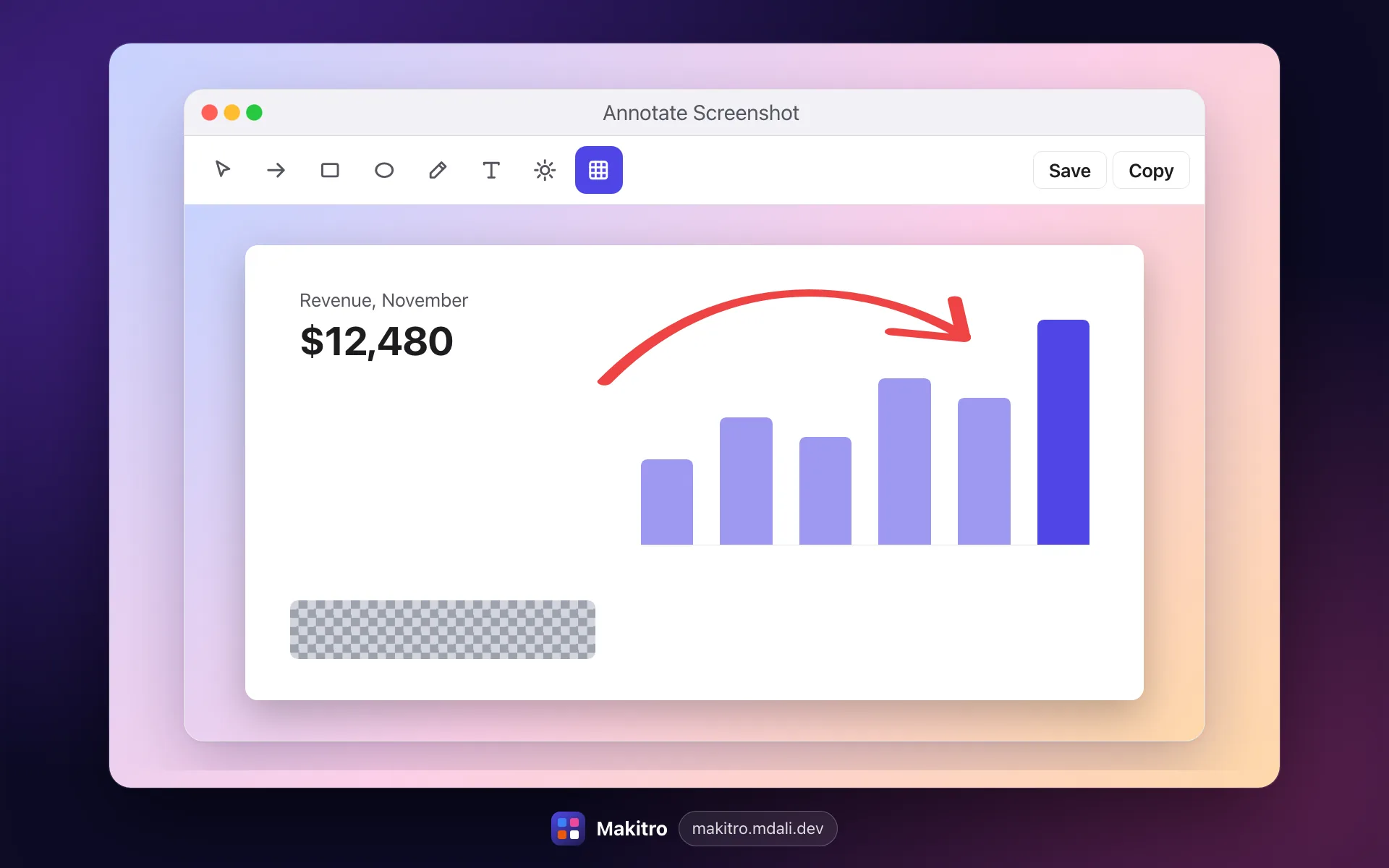
Screenshot is a faster ⌘⇧4. Press ⌃⌘4, drag an area, and the capture waits in a small preview: copy it, save it, or drag it straight into another app. One click opens the editor for arrows, shapes, text, spotlight and pixelate. Captures never leave your Mac. It runs on macOS 14 Sonoma and later.
Using Screenshot
- Press ⌃⌘4 and drag over the area you want. Window and full-screen captures can have shortcuts of their own.
- The capture appears in a preview. Copy it, save it, or drag it into a message, document or browser.
- Click annotate to add arrows, shapes, pencil marks or text, spotlight one part, or pixelate something private.
- Saved captures go to your Desktop, or to any folder you choose.
What makes Screenshot different
No clash with the system shortcuts
⌃⌘4 sits next to ⌃⌘V and ⌃⌘C and leaves ⌘⇧3, ⌘⇧4 and ⌘⇧5 alone, so the macOS screenshot tools keep working.
Annotation without another app
Arrows, shapes, pencil, text, spotlight and pixelate are in the editor, one click from the preview. No round trip through Preview.
Clean files
Saved images carry no location or app information. Makitro's own windows never appear in a capture.
Local only
A capture stays in memory until you copy or save it. Makitro never uploads screenshots anywhere.
Questions about Screenshot
Want the whole story? Read the guide: How to take and annotate a screenshot on a Mac.
Using CleanShot X? See how Makitro compares with CleanShot X.
Why does it need Screen Recording permission?
macOS requires Screen Recording for any app that captures the screen. Makitro asks the first time you take a screenshot, and uses it only to capture what you select, when you ask.
How do I annotate a screenshot on Mac?
Take the capture with ⌃⌘4, then click annotate in the preview. Add arrows, shapes, text or pencil marks, spotlight an area or pixelate it, then copy or save the result.
Can I change the shortcut?
Yes. ⌃⌘4 captures an area by default. You can change it, and add shortcuts for window, full-screen and capture-then-annotate, on the Screenshot page in Makitro.
Where are screenshots saved?
Only where you ask: on your Desktop by default, or in a folder you choose. You can also have every capture saved automatically, or only copied to the clipboard.
Get Screenshot and the rest of Makitro
One download for all eight tools. Turn on only what you use: a tool that's off runs nothing.