How to change an external monitor's brightness from your Mac
The brightness keys dim your MacBook, not the monitor next to it. Why, and how to control the monitor without its buttons.
Press the brightness keys with a monitor plugged in and only your MacBook's screen changes. The monitor next to it stays exactly as bright, and changing that means reaching around for small buttons and a clumsy on-screen menu. Here's why, and what you can do about it.
Why the brightness keys don't work on your monitor
macOS controls the brightness of the built-in screen and of Apple's own displays. Other monitors keep their settings in the monitor itself, and macOS doesn't change them. So the keys, the Control Center slider and System Settings › Displays have no brightness control for most external monitors.
DDC/CI: how a Mac can talk to the monitor
Most monitors support DDC/CI, a standard that lets a computer change the monitor's own brightness, contrast and often volume, over the same cable as the picture. macOS doesn't offer it, but an app can use it, and then the change is real: the backlight dims, exactly as with the buttons.
Why it works on one cable and not another
DDC/CI has to travel through everything between the Mac and the monitor. Many HDMI adapters and docks don't pass it through. With USB-C or DisplayPort straight to the monitor it usually works; through a cheap adapter it often doesn't. If you can, try another cable or port before giving up.
When DDC/CI isn't available: dim the monitor in software
If the monitor can't be reached, an app can still dim the picture by changing the colors the Mac sends. The backlight stays the same, so it saves less power, but your eyes get the same relief late at night.
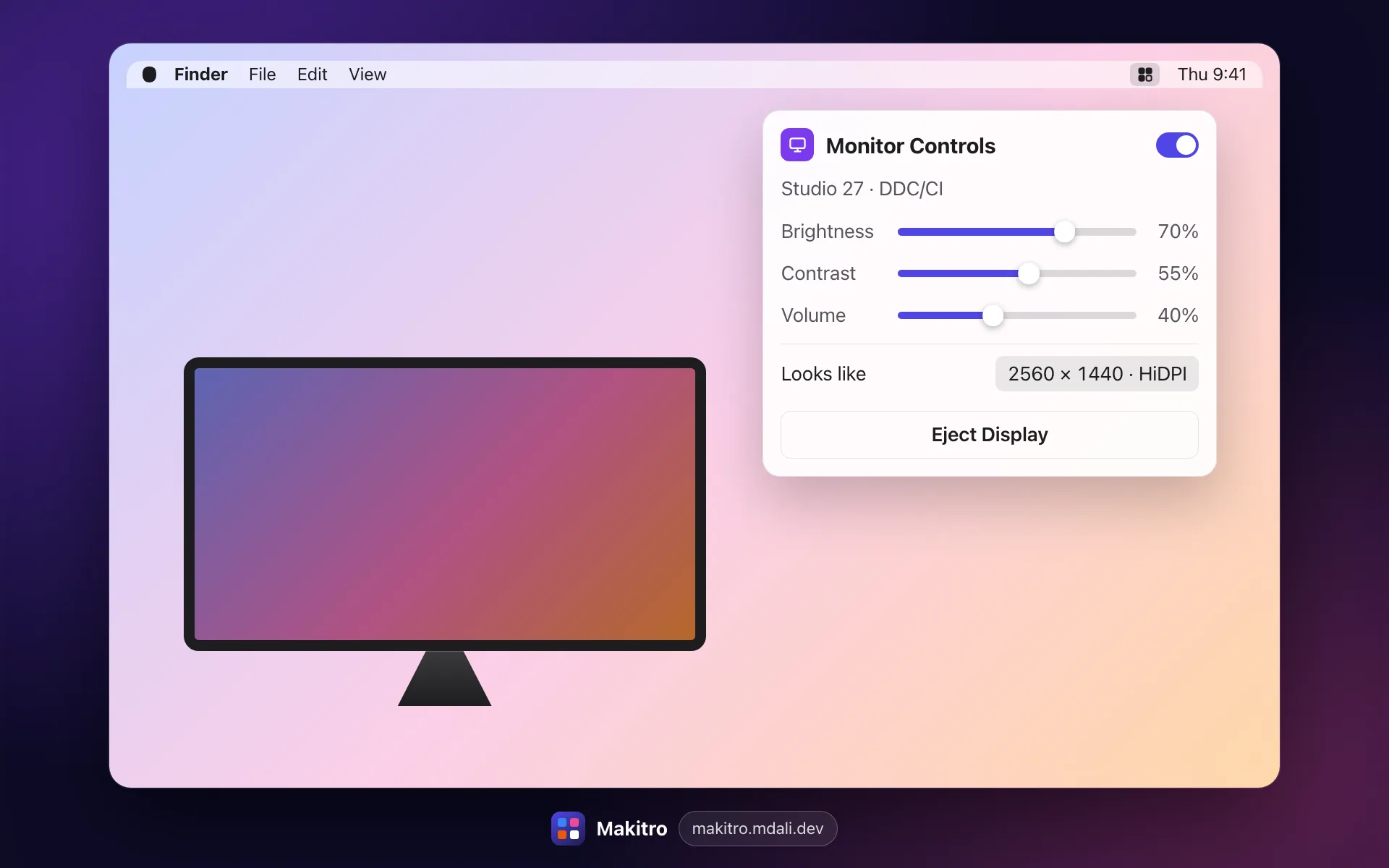
Makitro's Monitor Controls puts a brightness slider for your external monitor in the menu bar. It uses DDC/CI when the connection allows it and falls back to software brightness and contrast when it doesn't, remembered per monitor.
- Contrast, and volume for monitors that accept it, on the Monitor Controls page.
- Sharp HiDPI sizes that System Settings doesn't offer.
- Eject Display, to move a monitor's windows to your built-in screen before you unplug.
- No admin password and no macOS permission.
Using a closed MacBook with the monitor as your only screen? See how to keep your Mac awake, even with the lid closed.