How to lock your MacBook keyboard while you clean it
Wipe a keyboard while the Mac is on and you'll type into a document, change the volume and dim the screen. Two clean ways around it.
Wipe a keyboard while the Mac is on and it takes every touch as a keypress. You type a line of gibberish into whatever is open, the volume jumps, the screen dims, and with a modifier held down you might even close a window. Here are the two clean ways to avoid it.
Option 1: shut the Mac down
Apple's own advice for cleaning any Mac is to shut it down and unplug the power adapter first (How to clean your Apple products). It's the safest choice for a deep clean, with nothing running and no power in the keyboard.
- Save your work and choose Apple menu › Shut Down.
- Unplug the power adapter and anything else connected.
- Clean the keyboard, let it dry fully, then turn the Mac on again.
The cost is everything you had open: apps, windows and downloads all start over. For a quick wipe between meetings, that's a lot.
Option 2: clean a MacBook keyboard without turning it off
macOS has no switch to turn the keyboard off for a moment. Locking the screen doesn't help: keys still type into the password field. What you want is something that ignores every key, including media and brightness keys, for a few minutes, while the mouse or trackpad keeps working so you can end it.
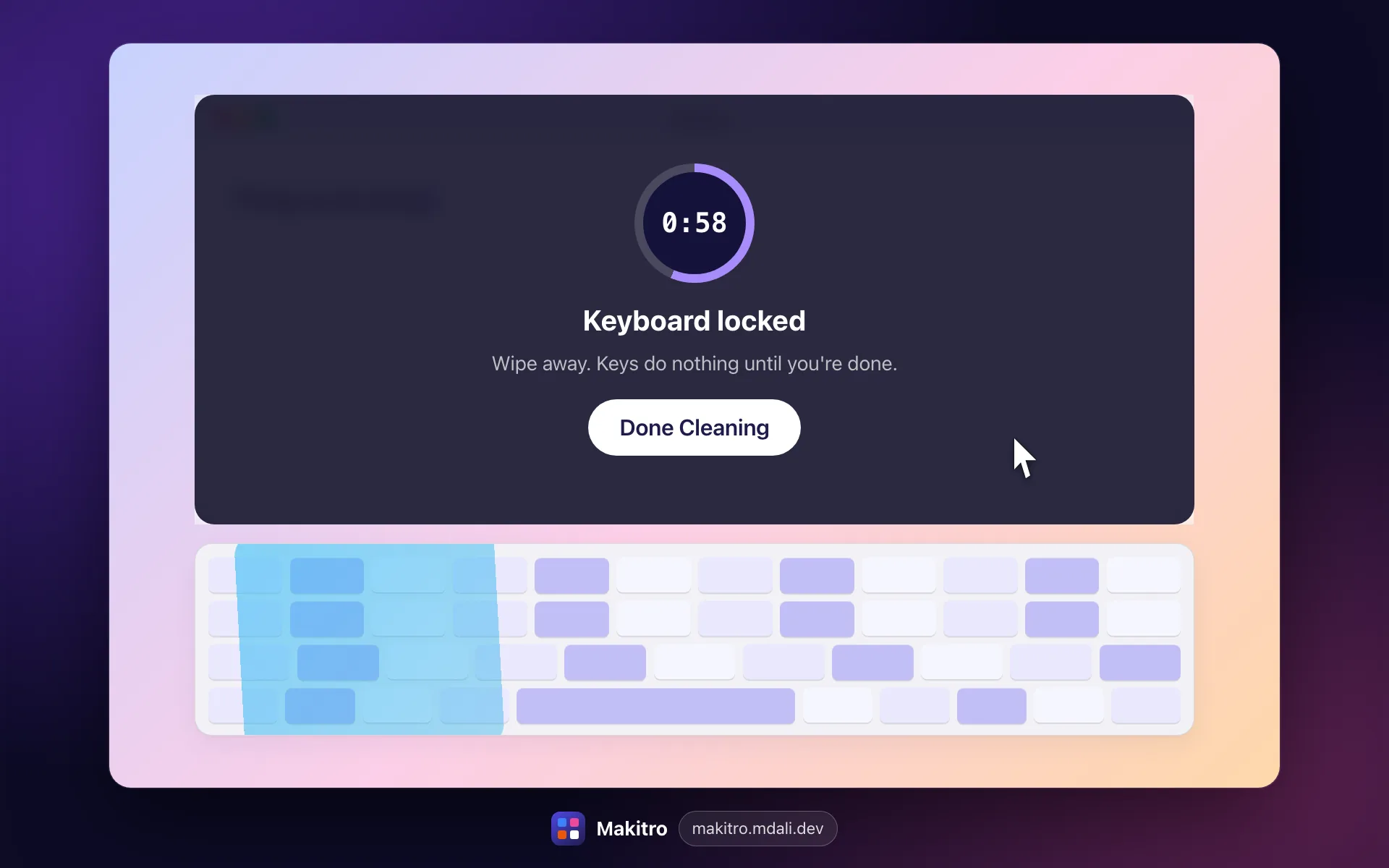
Makitro's Clean Keyboard ignores every key, built-in and external, until you click Done Cleaning or its timer runs out (1, 2, 3 or 5 minutes).
- Click the Makitro icon in the menu bar and choose Clean Keyboard.
- The first time, click Grant Access… and allow Makitro in Privacy & Security › Accessibility.
- Wipe away. When you're done, click Done Cleaning, or let the timer end it.
It needs a mouse or trackpad to start, so you can always click your way out, and it won't start while a password field is active. Why it asks for Accessibility at all: how Mac utilities like this work.
How to clean the keys, and under them
- Use a soft, lint-free cloth. Microfibre is ideal.
- For grime, dampen the cloth lightly with water. Never spray anything directly onto the keyboard, and don't let moisture into the gaps.
- Avoid abrasive cloths, paper towels and harsh cleaners, which can wear the key coating.
- Apple says a 70 percent isopropyl alcohol wipe is fine on the keyboard's hard surfaces, as long as no moisture gets into the openings.
- Let the keyboard dry completely before you type on it again.
- Keys sticking or not responding? Apple has a separate guide using compressed air: How to clean the keyboard of your MacBook.