Why some Mac apps aren't on the App Store, and how to tell they're safe
Some of the most useful Mac utilities can't be in the App Store at all. Why, and how to check any app you download from the web.
The Mac App Store is a safe default, and many excellent Mac apps aren't in it. Some leave by choice, and some can't get in at all because of what they do. Here's why, and how to check any app you download from the web before you open it.
The App Store requires the sandbox
Every app in the Mac App Store has to run in the App Sandbox, which limits what it can reach: its own files, and only what you hand it. That's great for most apps. It also rules out a whole class of utilities, the ones whose job is to work across the system:
- changing input from your mouse or keyboard before other apps see it,
- listing and moving other apps' windows,
- talking directly to hardware such as an external monitor.
Makitro is an example. Reversing scroll direction for the mouse only needs an event tap that changes scroll events system-wide, and the sandbox doesn't allow it. So Makitro, like many Mac utilities, is distributed directly.
Outside the App Store isn't unchecked
Apple still has two layers of protection for apps from the web:
- Developer ID. The app is signed with a certificate Apple issues to a known developer. If the app is changed after signing, the signature breaks.
- Notarization. Before release, the developer sends each build to Apple, which scans it for malicious content and checks it's built with the hardened runtime. Only then does macOS open it without warnings.
When you open an app, Gatekeeper checks both (Safely open apps on your Mac). A notarized app opens with a short "downloaded from the internet" confirmation. An app that isn't notarized is blocked, and you have to go out of your way to open it.
How to check an app yourself
- Move the app to Applications.
- Open Terminal (Applications › Utilities).
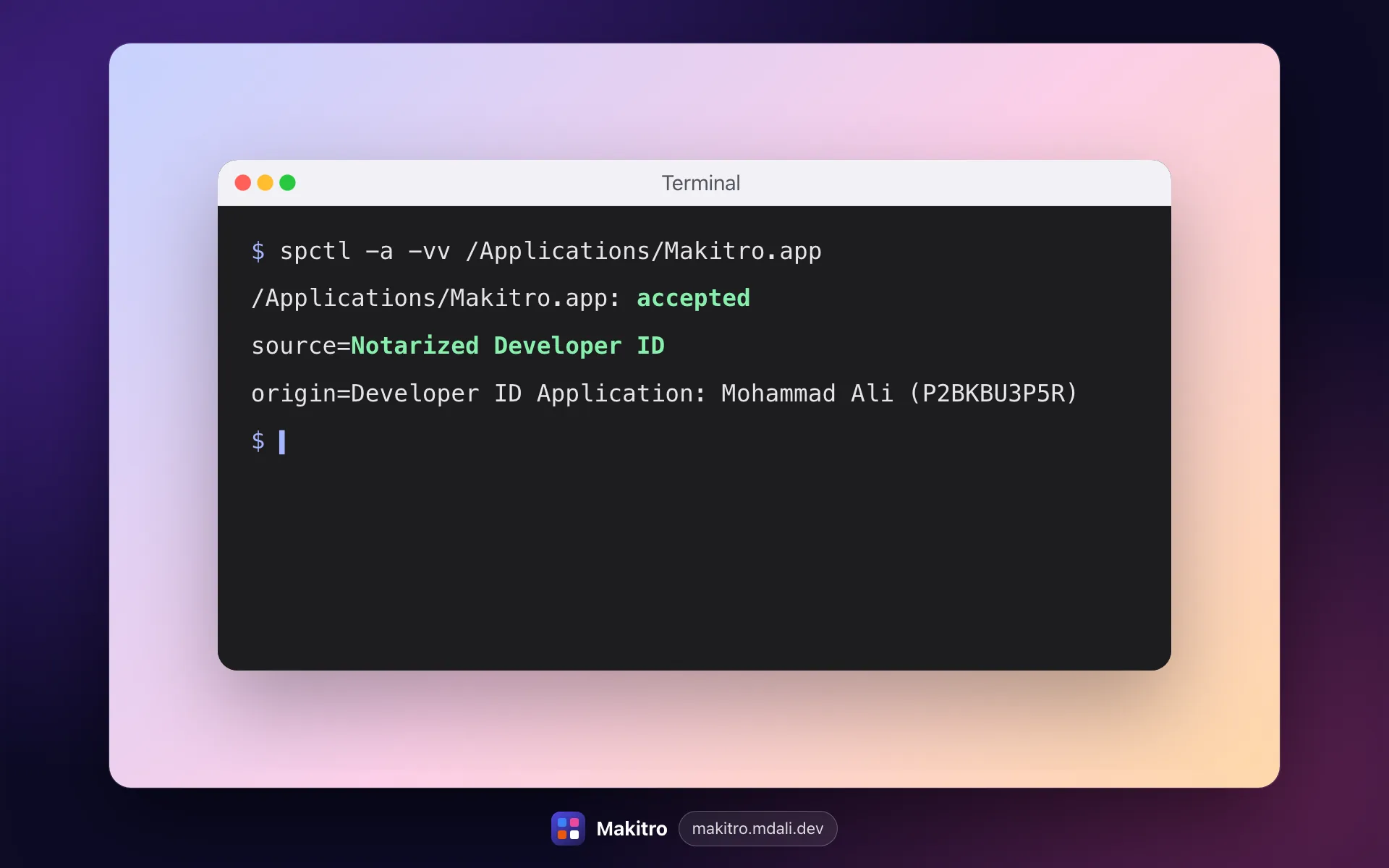
- Type
spctl -a -vv /Applications/AppName.appwith the app's name, and press Return. - Look for
acceptedandsource=Notarized Developer ID, followed by the developer's name.
What else to look for
- Updates you can trust. Apps outside the store update themselves. A good updater, such as Sparkle, checks that each update is signed by the developer before installing it.
- Permissions with reasons. An app should ask for Accessibility or Screen Recording only when you use the feature that needs it, and say why first. One that asks for everything at launch deserves a second look.
- A clear privacy policy. It should say exactly what leaves your Mac, if anything.
- A way to watch it. A network monitor such as Little Snitch or the free LuLu shows every connection an app makes.